
Using a computer and a mobile phone at the same time for different tasks can often feel inconvenient. You may receive messages on your phone while working on your PC, need to check notifications, reply to emails, or access files stored on another device. Switching constantly between devices breaks focus and slows productivity.
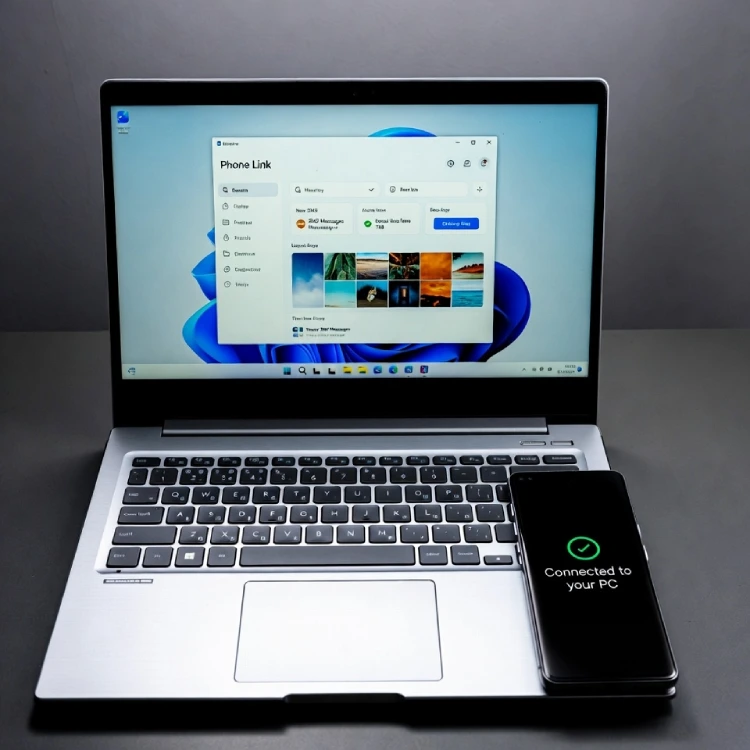
Many users wish there were a simple way to use their phone and computer together seamlessly. Fortunately, Microsoft provides an official and reliable solution through aka.ms/linkPC or www.aka.ms.yourpc. This link guides users to trusted applications that allow Android phones and Windows PCs to sync securely—without malware, privacy risks, or unreliable third-party tools.
Table of Contents
What Is www.aka.ms.yourpc?
www.aka.ms.yourpc or aka.ms/linkPC is an official Microsoft redirection link that helps users connect their Android smartphone with a Windows PC using Microsoft’s built-in syncing tools. It leads users to download and set up apps such as:
- Phone Link (on Windows)
- Link to Windows / Your Phone Companion (on Android)
These apps allow users to access messages, notifications, photos, calls, and even mobile apps directly from their PC screen.
What Do You Need to Connect Your Phone with Your Computer?
Before starting the syncing process, ensure the following requirements are met:
- Phone Link / Your Phone Companion App
This is the core application required on both devices. You can access it via www.aka.ms.yourpc, aka.ms/linkPC, or https://www.aka.ms/phonelink, which redirects to official app stores only. - Stable Internet Connection
Both your PC and mobile phone must be connected to a reliable and fast Wi-Fi network. - Same Microsoft Account
You must sign in using the same Microsoft account on both devices for successful pairing. - Bluetooth Support
Bluetooth is required for features like calls and device pairing.- If your PC lacks built-in Bluetooth, you may install drivers or use a USB Bluetooth dongle.
How to Connect PC with Mobile (PC Setup)
Follow these steps on your Windows PC:
- Turn on your computer and connect it to Wi-Fi.
- Open the Microsoft Store.
- Search for Phone Link.
- Download and open the official app.
- Sign in using your Microsoft account.
- Select your phone type (Android).
- A QR code will appear on your screen.
How to Connect Mobile with PC (Phone Setup)
Now, complete the setup on your Android phone:
- Visit https://aka.ms/linkPC or https://www.aka.ms/phonelink or open the Google Play Store.
- Download Link to Windows / Your Phone Companion.
- Sign in using the same Microsoft account.
- Scan the QR code shown on your PC.
- Grant required permissions (messages, notifications, calls, photos).
Once completed, both devices will be linked.
What Can You Do After Syncing?
After successful syncing, you can:
- View and reply to SMS messages
- Access phone notifications on PC
- Make and receive calls
- View and transfer photos
- Use select Android apps on PC
- Mirror your phone screen (supported devices)
- Drag and drop files
- Stay productive without touching your phone
This integration is especially useful for work, multitasking, and productivity.
What If www.aka.ms/yourpc Does Not Open?
If the link does not load:
- You may be in a region where access is limited
- Try switching networks
- Use a reputable VPN (US servers work in most cases)
- Alternatively, access apps directly from Microsoft Store and Google Play Store
- Or visit this URL https://aka.ms/linkPC or https://www.aka.ms/phonelink
Which Android Phones Are Compatible?
Fully Supported Devices (Best Experience)
- Surface Duo / Duo 2
- Samsung Galaxy S, Note, Z series
- Samsung Galaxy Fold & Flip models
- HONOR Magic series
Partially Supported Devices
Most Android devices running Android 7.0 or higher can connect, though features may be limited (screen mirroring or app usage may not be available).
❗ Compatibility depends on manufacturer support and Android version—not just hardware.
Is www.aka.ms.yourpc Safe and Reliable?
Yes. This link is 100% official and owned by Microsoft.
- No malware
- No third-party downloads
- No data harvesting
- Encrypted communication
- Uses Microsoft security standards
The risk only exists when users download fake or modified versions from unofficial websites.
Conclusion
Using aka.ms/linkPC, https://www.aka.ms/phonelink or www.aka.ms.yourpc, you can securely and efficiently sync your Android phone with your Windows PC. With the right setup—official apps, stable internet, Bluetooth, and a single Microsoft account—you gain seamless access to messages, notifications, calls, photos, and apps across devices.
This solution is safe, official, and productivity-focused, making it the best choice for users who want their phone and computer to work together effortlessly.
FAQs
What does www.aka.ms/linkphone mean?
It’s a Microsoft shortcut URL that opens the Phone Link setup page to connect your mobile device to your Windows PC.
Is aka.ms/yourpc a reliable website?
Yes, aka.ms/yourpc is an official Microsoft short link and is reliable. It redirects to Microsoft pages for connecting and managing devices. Avoid entering credentials on unknown sites and confirm the final Microsoft URL before proceeding. If you don’t open the try other URLs like aka.ms/linkPC or https://www.aka.ms/phonelink
Can I run mobile apps on my computer through this?
Yes, if your phone and PC meet the requirements, you can run mobile apps on Windows via Phone Link (or Link to Windows). Requirements usually include a compatible Android device (many Samsung Galaxy models, Surface Duo, and some others), Android 9.0+ on the phone, and Windows 10/11 with the Phone Link app. Follow the official setup prompts at aka.ms/linkphone or aka.ms/yourpc to pair devices.
Do I need a VPN to access aka.ms/yourpc?
No. You normally don’t need a VPN to access aka.ms/yourpc — it’s an official Microsoft short link available worldwide. Use a VPN only if the site is blocked in your country or your network restricts access.